Scheduling & Calendar
The Scheduling module is the heart of your clinic’s daily operations. Manage appointments, provider availability, and telemedicine sessions all in one place.
Accessing Scheduling
- Click Scheduling in the sidebar
- Or use dashboard quick actions
- URL:
/admin/scheduling
Scheduling Tabs
The scheduling page has four main tabs:
| Tab | Purpose |
|---|---|
| Calendar | Visual calendar view |
| Appointments | List view of all appointments |
| Telemedicine | Video consultation management |
| Availability | Provider schedule settings |
Calendar View
Calendar Navigation
Date Navigation:
- Today: Jump to current date
- < >: Navigate forward/backward
- Week/Month selector: Change view type
View Options:
- Day view: Hourly breakdown
- Week view: 7-day overview
- Month view: Monthly calendar
Understanding the Calendar
Appointment Colors by Status: | Color | Status | |——-|——–| | 🔵 Blue | Scheduled | | 🟢 Green | Confirmed | | ⬜ Gray | Completed | | 🔴 Red | Cancelled |
Appointment Types:
- In-Person: Standard office visit
- Telemedicine: Video consultation (marked with video icon)
Calendar Interactions
Click on Empty Time Slot:
- Opens new appointment modal
- Date and time pre-filled
Click on Appointment:
- Opens appointment details modal
- View patient info, notes, status
Drag and Drop:
- Drag appointments to reschedule
- Confirmation dialog appears
- Automatic notification sent to patient
Creating Appointments
Method 1: From Calendar
- Click on an empty time slot
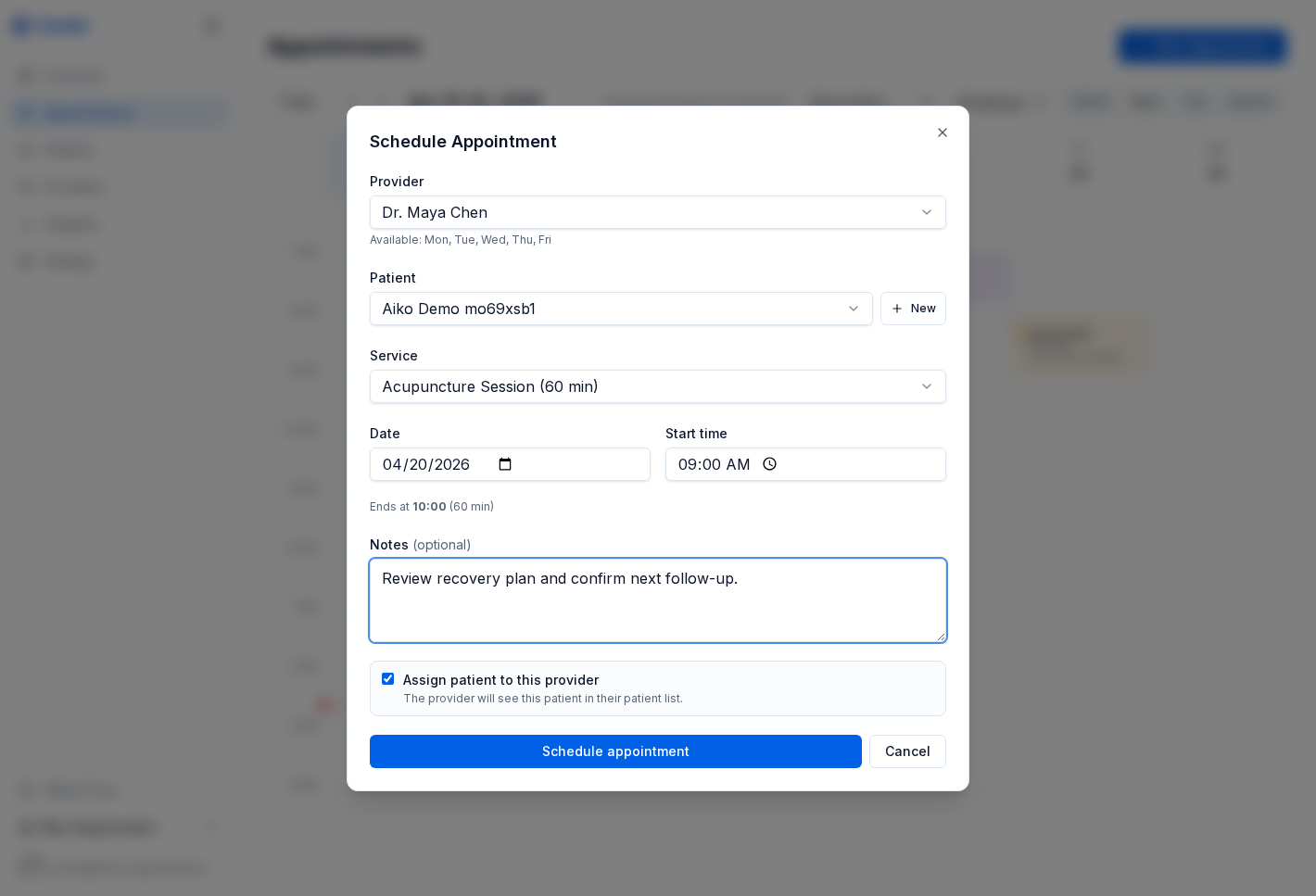
- Fill in the appointment form
- Click Create
Method 2: From New Appointment Button
- Click + New Appointment button
- Select date, time, and duration
- Fill in details
- Click Create
Method 3: From Patient Profile
- Go to patient details
- Click the calendar icon
- Complete appointment form
- Click Create
Appointment Form Fields
Required Fields: | Field | Description | |——-|————-| | Patient | Select from patient list | | Provider | Assign provider for appointment | | Date | Appointment date | | Time | Start time | | Duration | Length in minutes | | Type | Appointment type |
Optional Fields: | Field | Description | |——-|————-| | Notes | Internal notes | | Reason | Reason for visit | | Follow-up | Mark as follow-up visit |
Appointment Types
| Type | Description |
|---|---|
| New Patient | First visit for new patients |
| Follow-Up | Continuing care visit |
| Annual Checkup | Yearly examination |
| Consultation | Initial consultation |
| Telemedicine | Virtual video visit |
| Urgent | Same-day urgent care |
Appointment Details
Click any appointment to view its details:
Details Modal Sections
Patient Information:
- Name and contact info
- Medical record number
- Insurance information
Appointment Information:
- Date and time
- Duration
- Provider assigned
- Appointment type
- Status
Notes:
- Internal notes
- Visit reason
- Provider comments
Appointment Actions
From the details modal, you can: | Action | Description | |——–|————-| | Edit | Modify appointment details | | Reschedule | Change date/time | | Cancel | Cancel the appointment | | Mark Complete | Close the appointment | | Start Telemedicine | Launch video session | | View Patient | Go to patient profile |
Appointment Status Workflow
Scheduled → Confirmed → In-Progress → Completed
↓
Cancelled
↓
No-Show
Status Descriptions
| Status | Meaning |
|---|---|
| Scheduled | Initial booking |
| Confirmed | Patient confirmed attendance |
| In-Progress | Appointment is happening now |
| Completed | Visit finished successfully |
| Cancelled | Appointment cancelled |
| No-Show | Patient didn’t arrive |
Changing Status
- Open appointment details
- Click status dropdown
- Select new status
- Add notes if required
- Save changes
Managing Availability
Accessing Availability Settings
- Go to Scheduling → Availability tab
- Select a provider from the list
- View/edit their schedule
Setting Weekly Schedule
For each day of the week:
- Toggle Availability: Mark day as available or closed
- Set Working Hours: Start and end times
- Add Break Times: Lunch, meetings, etc.
Example Weekly Schedule
| Day | Available | Hours | Break |
|---|---|---|---|
| Monday | ✅ | 9:00 AM - 5:00 PM | 12:00 - 1:00 PM |
| Tuesday | ✅ | 9:00 AM - 5:00 PM | 12:00 - 1:00 PM |
| Wednesday | ✅ | 9:00 AM - 12:00 PM | — |
| Thursday | ✅ | 9:00 AM - 5:00 PM | 12:00 - 1:00 PM |
| Friday | ✅ | 9:00 AM - 4:00 PM | 12:00 - 1:00 PM |
| Saturday | ❌ | — | — |
| Sunday | ❌ | — | — |
Saving Availability
- Make changes to the schedule
- Click Save in the availability calendar
- Changes apply to future bookings
Appointments List View
The Appointments tab shows a list format:
List Features
- Sort by date, patient, provider
- Filter by status
- Search appointments
- Quick status updates
List Columns
| Column | Description |
|---|---|
| Patient | Patient name (clickable) |
| Date/Time | Appointment date and time |
| Duration | Length in minutes |
| Type | Appointment type |
| Provider | Assigned provider |
| Status | Current status badge |
| Actions | Edit, view, cancel buttons |
Telemedicine Sessions
Starting a Telemedicine Session
- Navigate to Scheduling → Telemedicine tab
- Find the scheduled telemedicine appointment
- Click Start Session (available near appointment time)
- Video interface opens
Telemedicine Requirements
Provider Requirements:
- Working webcam
- Microphone
- Stable internet connection
- Supported browser (Chrome, Firefox, Safari)
Patient Requirements:
- Invitation email with join link
- Device with camera/microphone
- Internet connection
During the Session
Provider Controls:
- Mute/unmute microphone
- Enable/disable camera
- Share screen
- End session
Session Features:
- HD video call
- Screen sharing
- Session recording (if enabled)
- Chat messaging
After the Session
- Session automatically ends when provider closes
- Update appointment status to “Completed”
- Add session notes if needed
- Patient receives follow-up if configured
Rescheduling Appointments
Method 1: Drag and Drop
- In calendar view, click and hold the appointment
- Drag to new date/time
- Release to drop
- Confirm the reschedule
Method 2: Edit Appointment
- Open appointment details
- Click Reschedule or Edit
- Select new date and time
- Save changes
Automatic Notifications
When rescheduling:
- Patient is notified via email/SMS
- Provider calendar updates automatically
- Original slot becomes available
Cancelling Appointments
- Open appointment details
- Click Cancel Appointment
- Select cancellation reason (optional)
- Confirm cancellation
Cancellation Effects:
- Time slot becomes available
- Patient is notified
- Appointment moves to “Cancelled” status
- Records are preserved for reporting
Best Practices
Scheduling
- Leave buffer time between appointments
- Set realistic appointment durations
- Block time for administrative tasks
- Review next-day schedule each evening
Availability
- Keep availability current
- Block time off in advance
- Consider patient travel times
- Plan for emergencies
Telemedicine
- Test equipment before sessions
- Have backup contact method
- Keep environment professional
- Document session notes promptly
Troubleshooting
Double Bookings
- Enable overlap prevention in settings
- Check provider availability settings
- Use the conflict warning system
Appointment Not Showing
- Verify patient is active
- Check date range filter
- Confirm provider filter
- Refresh the page
Telemedicine Issues
- Check browser compatibility
- Verify camera/mic permissions
- Test internet connection
- Clear browser cache
Availability Not Saving
- Check for validation errors
- Ensure times are valid
- Don’t overlap break times with work hours
- Try a different browser
Plan Limits
Appointment Limits by Plan
| Plan | Appointments | Telemedicine |
|---|---|---|
| Free | 10/month | ❌ |
| Starter | Unlimited | 5/month |
| Professional | Unlimited | Unlimited |
| Growth | Unlimited | Unlimited |
When approaching limits, you’ll see a warning banner. Upgrade your plan to remove restrictions.
| *Previous: Staff Management | Next: Messages & Lead Management →* |