Staff Management
Managing your team effectively is crucial for smooth clinic operations. This guide covers how to add, manage, and configure staff members in Genkō.
Accessing Staff Management
- Click Staff in the sidebar
- Or navigate from Settings → Staff tab
- URL:
/admin/staff
Staff Overview
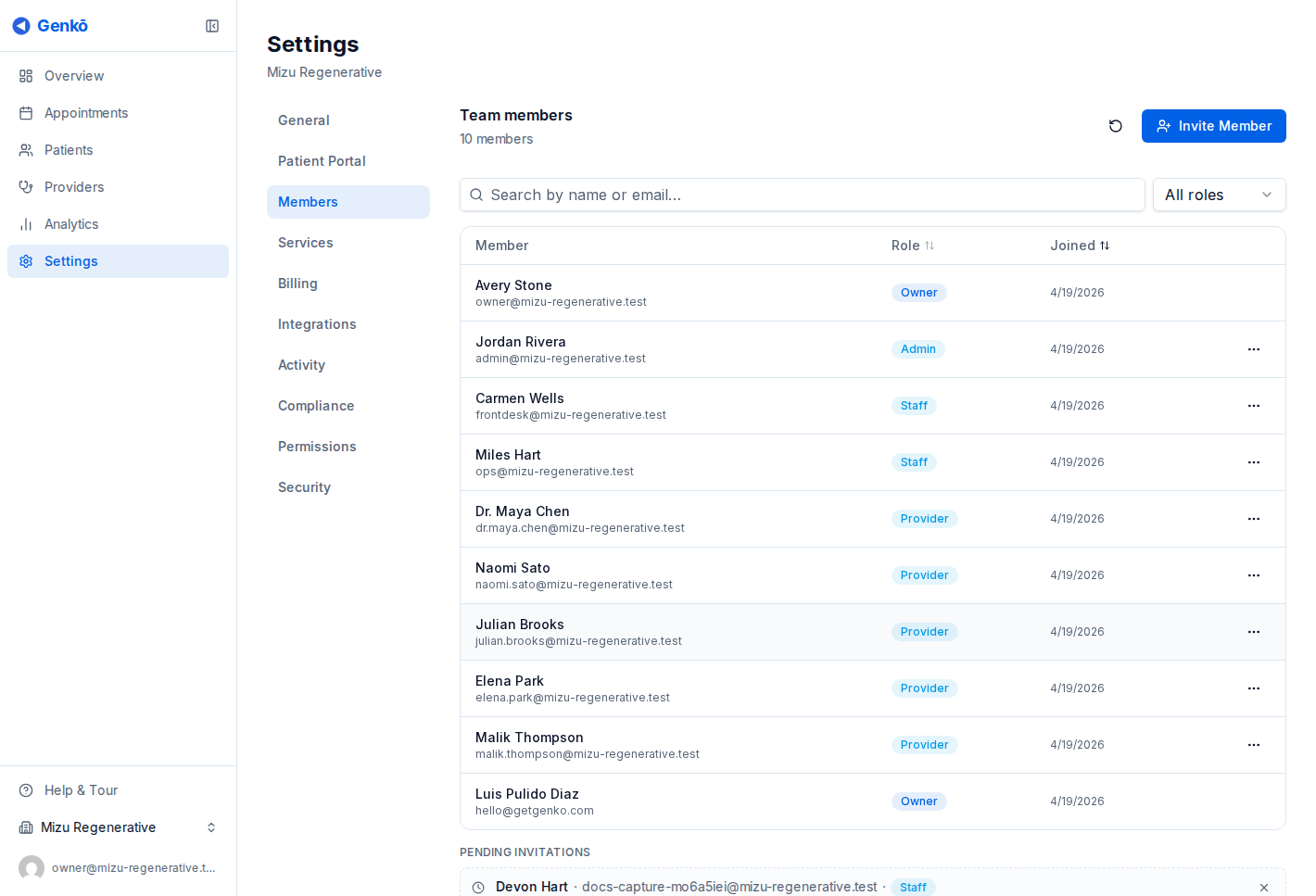
The Staff page displays:
- Header: Title and action buttons
- Search & Filters: Find staff quickly
- Staff Limit Warning: Shows usage against your plan’s limit
- Staff List: Table of all team members
Staff Roles
Genkō has four primary staff roles:
Admin
- Full access to all features
- Can manage other staff members
- Access to billing and settings
- Can view all patients and appointments
Provider
- Healthcare providers (doctors, specialists)
- Can manage their assigned patients
- Access to scheduling and telemedicine
- Can view medical records
Nurse
- Clinical support staff
- Can assist with patient care
- Limited editing capabilities
- Access to vitals and basic records
Staff
- Administrative personnel
- Basic patient view access
- Scheduling support
- No medical record editing
Adding Staff Members
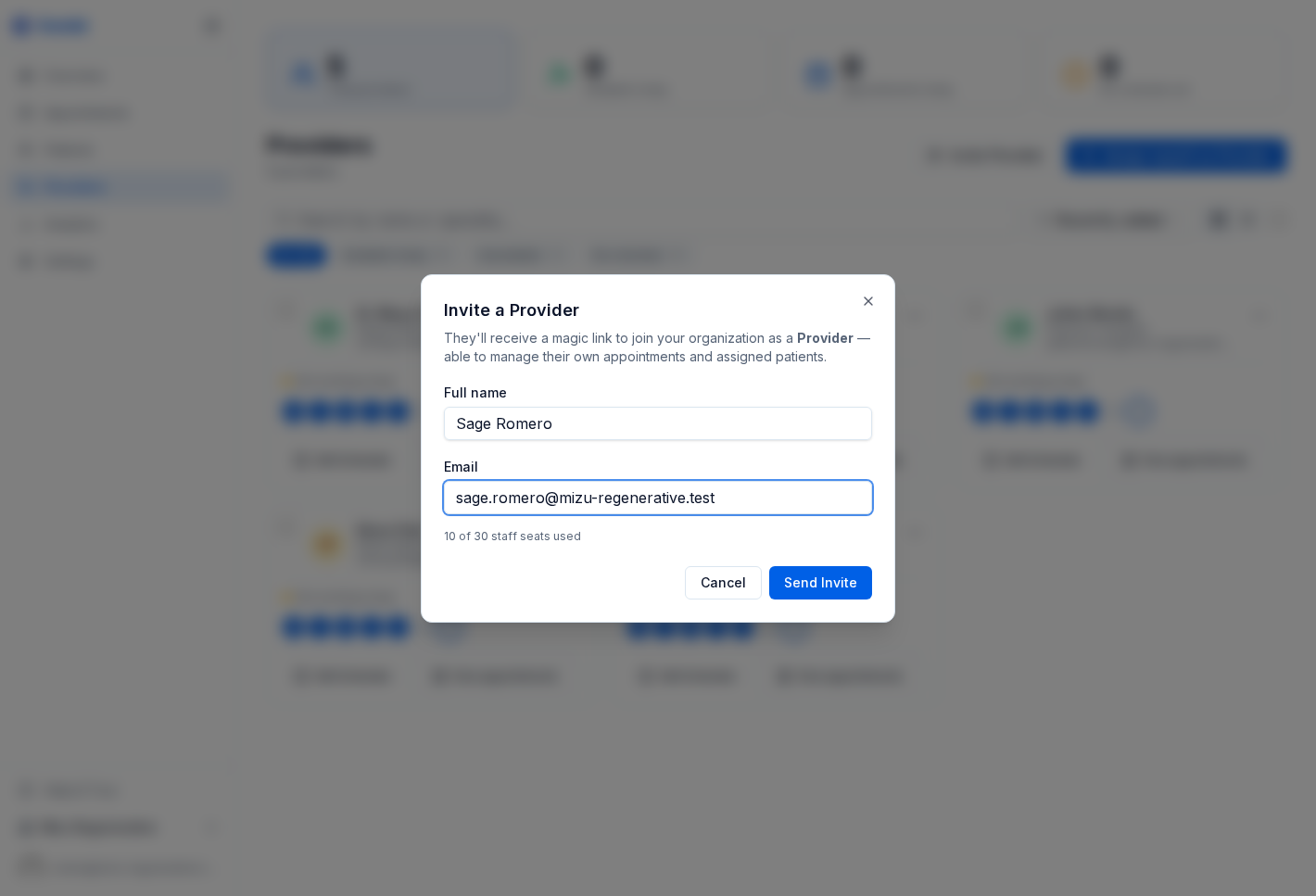
Step 1: Click Add Staff
Click the Add Staff button in the top-right corner.
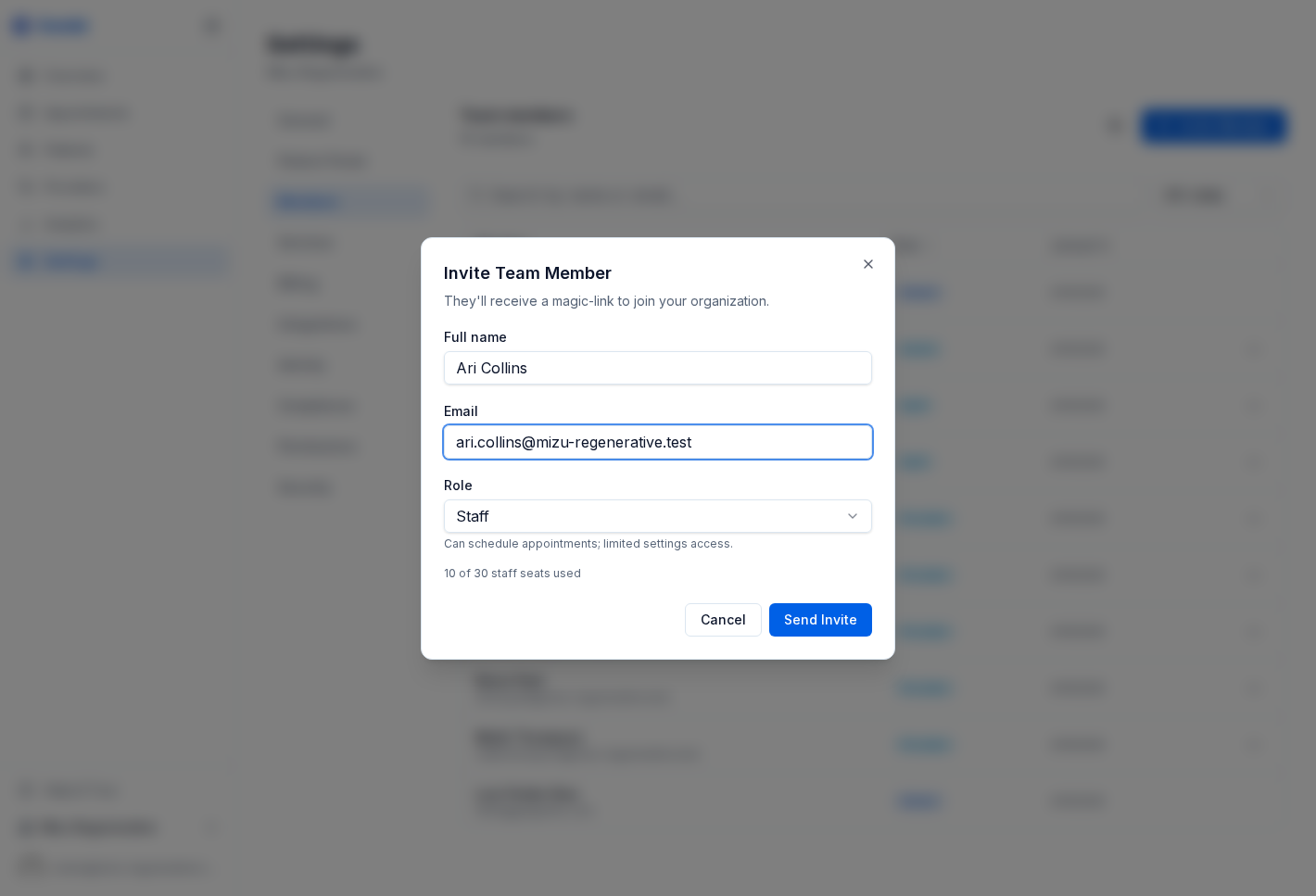
Step 2: Fill in Staff Information
Personal Information: | Field | Required | Description | |——-|———-|————-| | First Name | Yes | Staff member’s first name | | Last Name | Yes | Staff member’s last name | | Email | Yes | Work email address | | Phone | No | Contact number |
Role & Access: | Field | Required | Description | |——-|———-|————-| | Role | Yes | Admin, Provider, Nurse, or Staff | | Title | No | Professional title (e.g., “Dr.”, “RN”) | | Specialization | No | Area of specialty (for providers) |
License Information (for Providers/Nurses): | Field | Required | Description | |——-|———-|————-| | License Number | No | Professional license number | | License Expiry | No | License expiration date |
Step 3: Save and Invite
- Click Save to create the staff account
- An invitation email is sent automatically
- Staff member must set their password to activate
Importing Staff (CSV)
For bulk staff imports:
- Click Import Staff button
- Download the CSV template
- Fill in staff information
- Upload the completed file
- Review and confirm import
CSV Template Fields
| Column | Required | Description |
|---|---|---|
| first_name | Yes | First name |
| last_name | Yes | Last name |
| Yes | Email address | |
| role | Yes | admin, provider, nurse, staff |
| phone | No | Phone number |
| title | No | Professional title |
| specialization | No | Area of specialty |
| license_number | No | License number |
| license_expiry | No | YYYY-MM-DD format |
Managing Staff Members
Viewing Staff Details
- Click on a staff member’s row
- Or click the view icon (👁) in actions
- Full profile opens with all details
Staff Profile Sections
Personal Information:
- Name, title, contact details
- Role and specialization
- Account status
Access Information:
- Last login date
- Account status (Active/Inactive)
- Email verification status
License Information:
- License number
- Expiry date
- Renewal reminders
Editing Staff Information
- Click the edit icon (✏️) or open staff details
- Make changes to allowed fields
- Click Save
Editable by Admin:
- All personal information
- Role assignment
- License details
- Status
Resetting Staff Password
If a staff member forgets their password:
- Find the staff member in the list
- Click the dropdown menu (⋮)
- Select Reset Password
- Confirm the action
- A password reset email is sent to the staff member
Note: Staff members can also use “Forgot Password” on the login page.
Activating/Deactivating Staff
Deactivate Staff
Use when a staff member leaves or needs temporary suspension:
- Find the staff member
- Click the dropdown menu (⋮)
- Select Deactivate
- Confirm the action
Effects of Deactivation:
- Staff member cannot log in
- Existing appointments remain
- Data is preserved
- Can be reactivated later
Reactivate Staff
- Filter to show inactive staff
- Find the staff member
- Click Activate
Deleting Staff
Warning: Deleting staff is permanent and cannot be undone.
- Find the staff member
- Click the dropdown menu (⋮)
- Select Delete
- Type confirmation if required
- Click Confirm Delete
Notes:
- Account owner cannot be deleted
- Reassign patients before deleting providers
- Historical records are preserved
Role Permissions
Permission Matrix
| Permission | Admin | Provider | Nurse | Staff |
|---|---|---|---|---|
| View basic patient info | ✅ | ✅ | ✅ | ✅ |
| Edit basic patient info | ✅ | ✅ | ✅ | ❌ |
| View medical records | ✅ | ✅ | ✅ | ❌ |
| Edit medical records | ✅ | ✅ | ❌ | ❌ |
| Manage appointments | ✅ | ✅ | ✅ | ✅ |
| Telemedicine access | ✅ | ✅ | ✅ | ❌ |
| Manage staff | ✅ | ❌ | ❌ | ❌ |
| Access settings | ✅ | ❌ | ❌ | ❌ |
| View billing | Owner only | ❌ | ❌ | ❌ |
Customizing Permissions
Admins can customize role permissions in Settings:
- Go to Settings → Staff tab
- Find the Role-Based Access Controls section
- Adjust checkboxes for each role
- Click Save
Staff Limit Management
Your subscription plan determines how many staff you can add:
| Plan | Staff Limit |
|---|---|
| Free | 1 (owner only) |
| Starter | 3 |
| Professional | 10 |
| Growth | Unlimited |
When You Hit the Limit
- Warning banner appears on the Staff page
- Add Staff button is disabled
- Options:
- Deactivate inactive staff
- Upgrade your plan
Searching and Filtering
Quick Search
- Search by name, email, or phone
- Results update as you type
Status Filter
- All staff
- Active only
- Inactive only
Role Filter
- All roles
- Admin
- Provider
- Nurse
- Staff
Staff Invitations
Invitation Process
- Staff member is created by admin
- Invitation email is sent automatically
- Staff member clicks the invitation link
- Staff member sets their password
- Account becomes active
Invitation Status
| Status | Description |
|---|---|
| Pending | Email sent, not yet accepted |
| Accepted | Password set, account active |
| Expired | Link expired (resend required) |
Resending Invitations
- Find the staff member
- Click the dropdown menu
- Select Resend Invitation
Best Practices
Adding Staff
- Use work email addresses only
- Assign the minimum necessary role
- Complete license information for providers
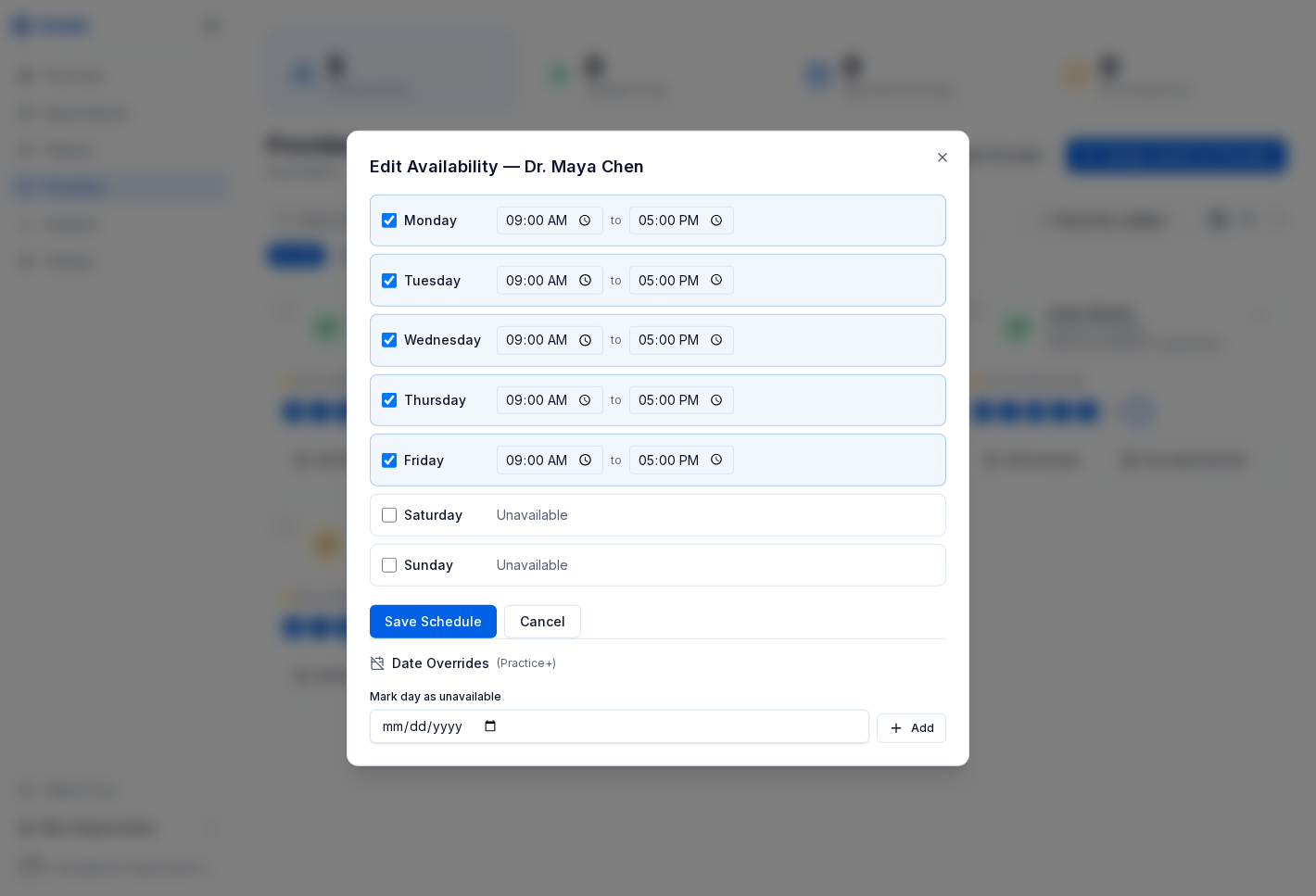
- Set up availability after account creation
Security
- Review staff access regularly
- Deactivate departed staff immediately
- Use strong password requirements
- Enable two-factor authentication (when available)
Organization
- Use consistent naming conventions
- Keep titles and specializations current
- Track license expiration dates
- Document role assignments
Troubleshooting
Staff Not Receiving Invitation
- Check email address is correct
- Ask staff to check spam folder
- Resend the invitation
- Verify email domain isn’t blocked
Cannot Add More Staff
- Check current plan limits
- Count active vs. total staff
- Consider plan upgrade
- Deactivate unused accounts
Staff Cannot Log In
- Verify account is active
- Check email is correct
- Reset password if needed
- Confirm invitation was accepted
Permission Issues
- Verify role assignment
- Check custom permission settings
- Admin may need to adjust access
| *Previous: Patient Management | Next: Scheduling & Calendar →* |